Practice App Setup
The Practice App is a small web app bundled with this documentation. It is the target every lesson automates: a dashboard with typed readouts, buttons with distinct icons, an on-demand popup, a scrollable target list, and a slider challenge.
It takes about five minutes to set up, once.
Why a practice target at all
Automation lessons need a screen that is identical for every reader, every time. A real app cannot promise that — content shifts daily, accounts differ, and its artwork is copyrighted. The Practice App is:
- Deterministic — every value is fixed. Gold is always
12480, the clock always09:45, the target list always the same twelve rows. Your OCR reads will match the lessons digit for digit. - Controllable — the reward popup appears only when you ask for it (
?popup=1), which is what makes the optional-element lesson reproducible. - Yours — it ships with the docs. Nothing to license, nothing that changes under you.
Step 1 — Get the files
The app is four HTML files and one stylesheet, served as static files from this documentation site at /practice-app/:
| File | Screen |
|---|---|
index.html | Sign In |
dashboard.html | Dashboard with the four readouts |
targets.html | Scrollable target list |
verify.html | Slider challenge |
If you are reading these docs from the hosted site, download the folder from /practice-app/. If you have the repository, it lives at docs-site/static/practice-app/.
Step 2 — Serve it on your PC
Any static file server works. With Python (already on your machine if you have the app's tooling):
python -m http.server 8010 --bind 0.0.0.0 --directory path/to/practice-app
--bind 0.0.0.0 matters: it makes the server reachable from the emulator, not just from your PC.
Allow the port through Windows Firewall the first time (PowerShell, as Administrator):
powershell -Command "New-NetFirewallRule -DisplayName 'Practice App 8010' -Direction Inbound -LocalPort 8010 -Protocol TCP -Action Allow"
Step 3 — Find your PC's LAN address
The emulator reaches your PC by its LAN IP, not localhost:
ipconfig
Look for the IPv4 address of the adapter your network uses — for example 192.168.1.3. (With MuMu's bridged networking, the emulator sits on the same subnet, e.g. 192.168.1.4.)
Step 4 — Open it in the emulator
In the emulator's browser, open:
http://<your-pc-ip>:8010/dashboard.html
You should see the dashboard:
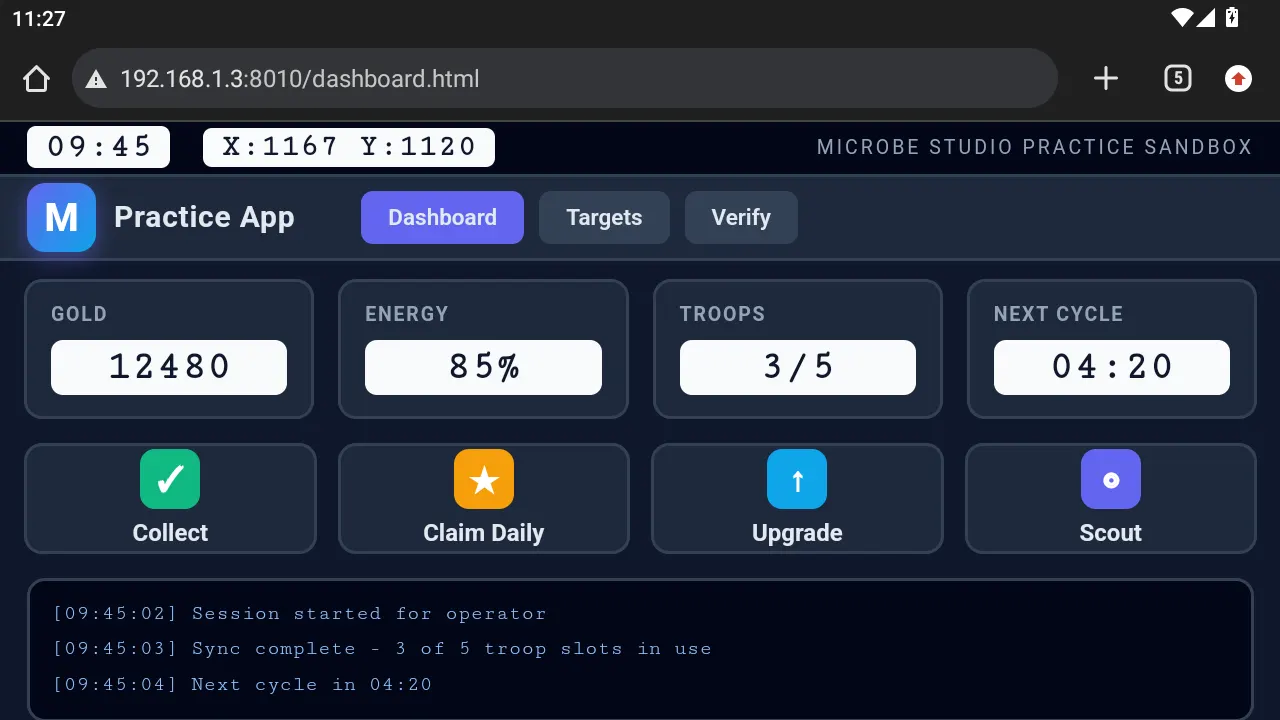
If the page does not load, test reachability from inside the emulator first — a quick check via ADB:
adb shell "curl -s -o /dev/null -w '%{http_code}' http://<your-pc-ip>:8010/dashboard.html"
200 means the server and firewall are fine, and any remaining problem is the URL you typed in the browser.
The screens
Dashboard
The home of most lessons. Four readouts — each one a different OCR value type — plus four action buttons and an activity log:
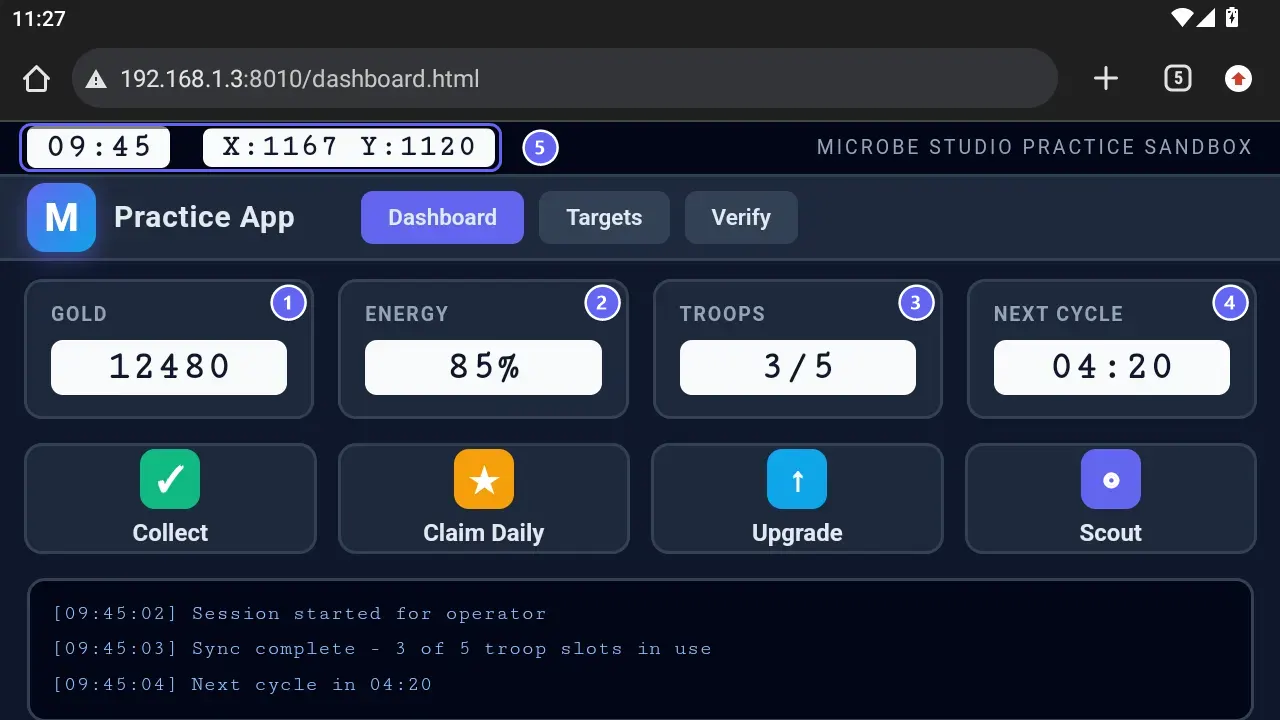
① Gold ② Energy ③ Troops ④ Next Cycle — one readout per OCR value type. ⑤ The status strip: a clock and a coordinate pair, both custom-regex targets.
| # | Readout | Shows | OCR type it teaches |
|---|---|---|---|
| ① | Gold | 12480 | Number |
| ② | Energy | 85% | Percentage |
| ③ | Troops | 3/5 | Counter (x/y) |
| ④ | Next Cycle | 04:20 | Time (mm:ss) |
| ⑤ | Status strip | 09:45, X:1167 Y:1120 | Custom regex |
Four readouts, four different value types, on one screen — so a single practice target covers every content type Read Text can extract.
The reward popup
Open dashboard.html?popup=1 and a Daily Reward dialog appears; without the parameter it does not. Claim adds 2500 to the gold readout; Close dismisses it:
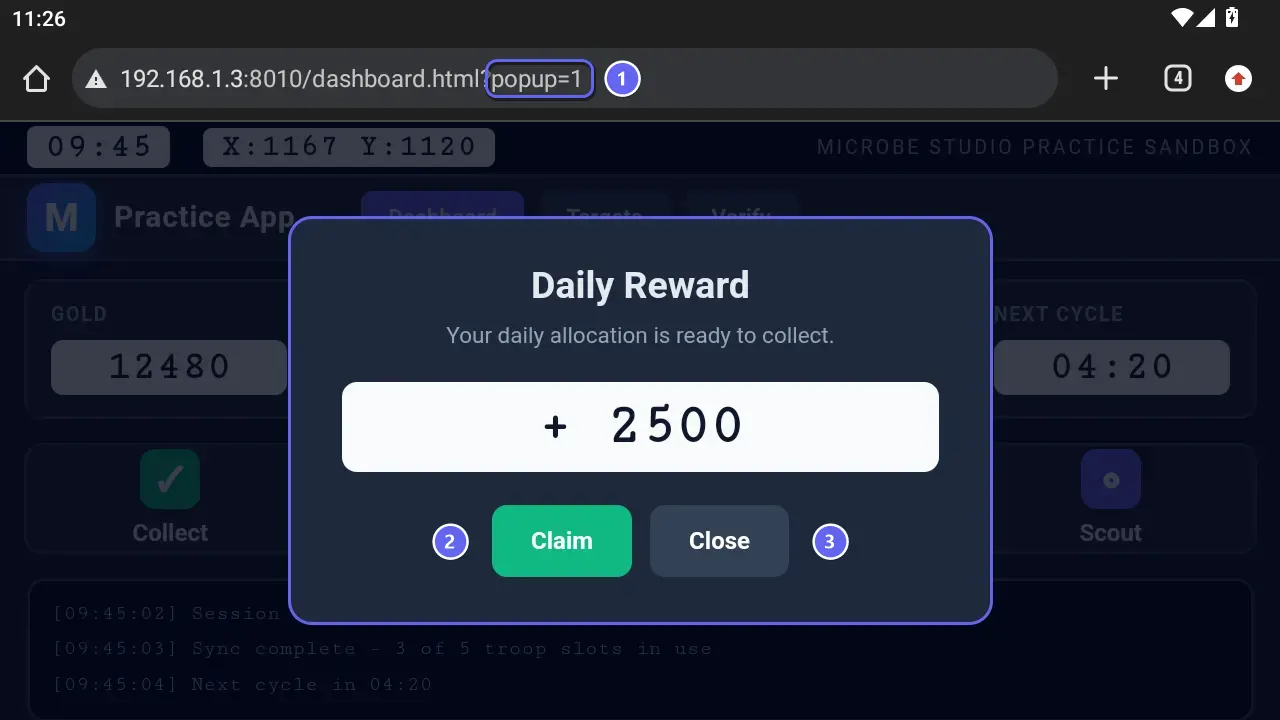
① The ?popup=1 switch in the address bar — the whole difference between the two states. ② Claim adds 2500 to Gold. ③ Close dismisses without collecting.
This switch is the heart of Lesson 04: one flow must handle both states.
Targets
Twelve fixed rows, each with a tier badge (A/B/C), a name, and a monospace readout X:1167 Y:1120 VAL:320. The list scrolls — which is what Swipe practice needs — and the readouts feed Custom-regex OCR:
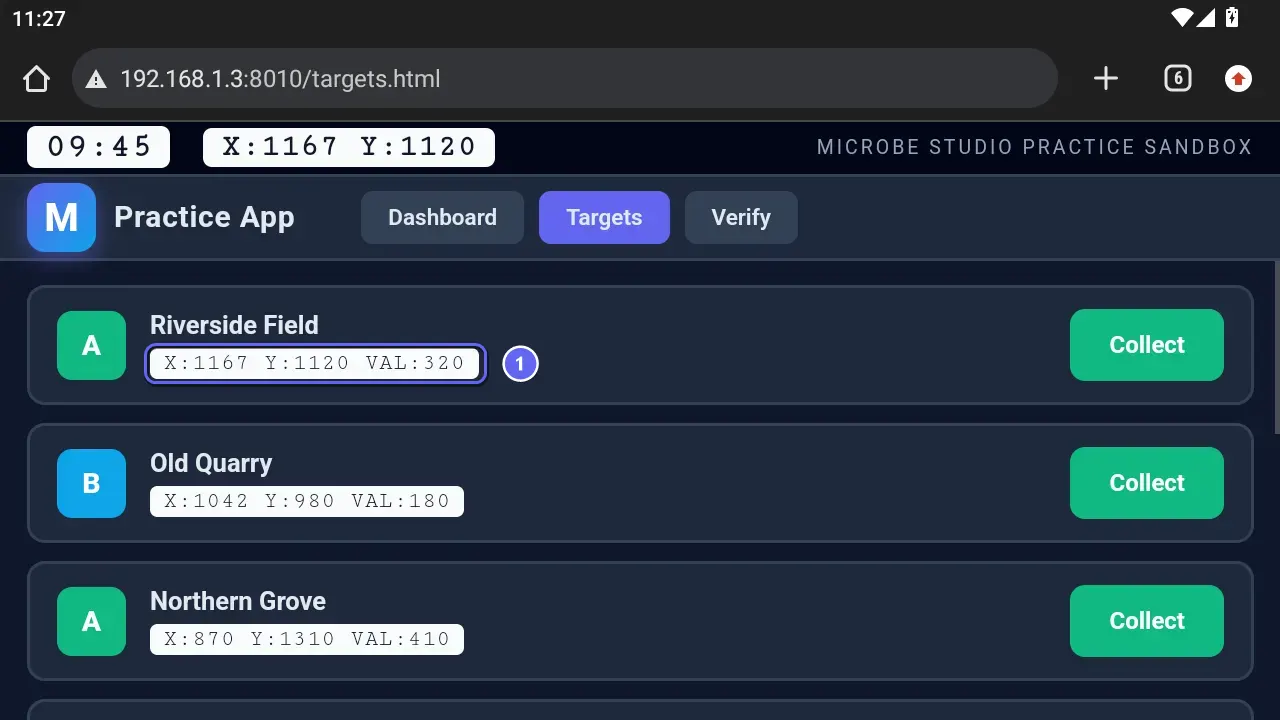
① The per-row readout. Three numbers in one string is exactly the case Custom-regex OCR exists for — see Lesson 06.
Verify
A slider challenge: drag the handle into the dashed gap. The gap sits at a fixed position (62% of the track), so an expected drag distance can be stated exactly; ?gap=40 moves it when you want a second case:
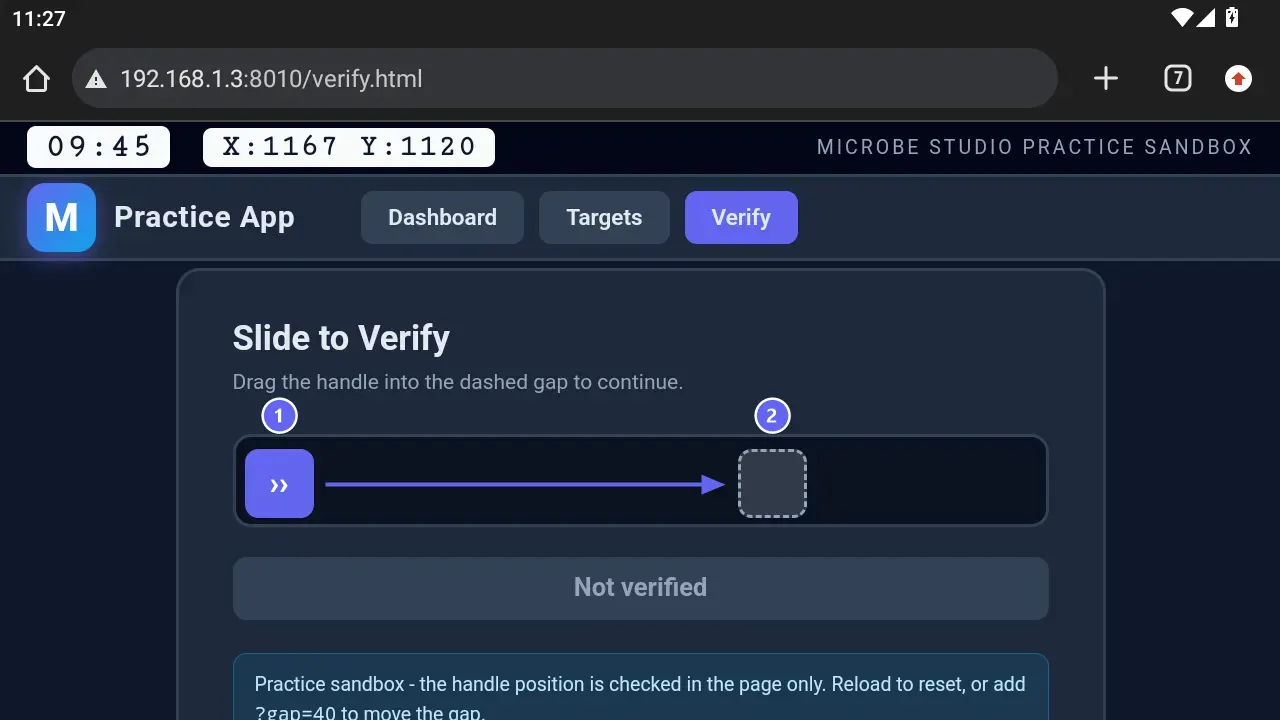
① The handle, at the start of the track. ② The dashed gap it has to reach. The arrow is the swipe your flow performs — a fixed gap means a fixed drag distance.
Deterministic overrides
Every value can be pinned via query string, which lessons use to create exact scenarios:
| Parameter | Effect | Example |
|---|---|---|
?popup=1 | Show the reward popup | Lesson 04 |
?gold=900 | Set the Gold readout | Threshold branching |
?energy=15% | Set Energy | Capstone low-energy path |
?troops=5/5 | Set the Troops counter | "All slots busy" case |
?timer=00:10 | Set the cycle timer | Time reads |
?clock=21:30 | Set the status clock | Time-of-day branching |
?x=990&y=1040 | Set the coordinates | Custom regex |
?gap=40 | Move the slider gap | Second captcha case |
Parameters combine: dashboard.html?popup=1&gold=900&troops=5/5.
Best practices
- Keep the server running while you work through lessons; flows fail their detections if the page is gone.
- Bookmark the dashboard URL in the emulator's browser.
- Use the overrides to create the exact state a lesson asks for, rather than hunting for it.
- Full-screen the browser if its toolbar overlaps the page on small resolutions.
Troubleshooting
The emulator cannot reach the page, but the PC can.
The server is bound to localhost (bind 0.0.0.0), or the firewall rule is missing, or you used localhost in the emulator instead of the PC's LAN IP.
Values look different from the lesson.
You have override parameters left in the URL. Load the plain dashboard.html.
The popup never appears.
It only appears with ?popup=1. That is the feature, not a bug.
OCR reads are garbled. Check the emulator resolution is 1280×720 as set up in Configure MuMu — the readouts are sized for it.