Lesson 06 · Read Every Value Type
Four readouts, four value shapes, one node, one screenshot.
The problem
The dashboard shows Gold 12480, Energy 85%, Troops 3/5, Next Cycle 04:20. A real routine often needs several of these at once — and four separate Read Text nodes would capture four separate screenshots of the same screen, slowly, with the values possibly changing between shots.
Multi-region mode reads several rectangles from one captured frame.
What you will learn
- Multi-region Read Text: several areas, one node, one screenshot.
- The two structured types — Counter (x/y) and Time (mm:ss) — and the flat variables they produce.
- Comparing two variables in one expression.
Before you start
- Lesson 05 completed. OCR gate on.
The flow
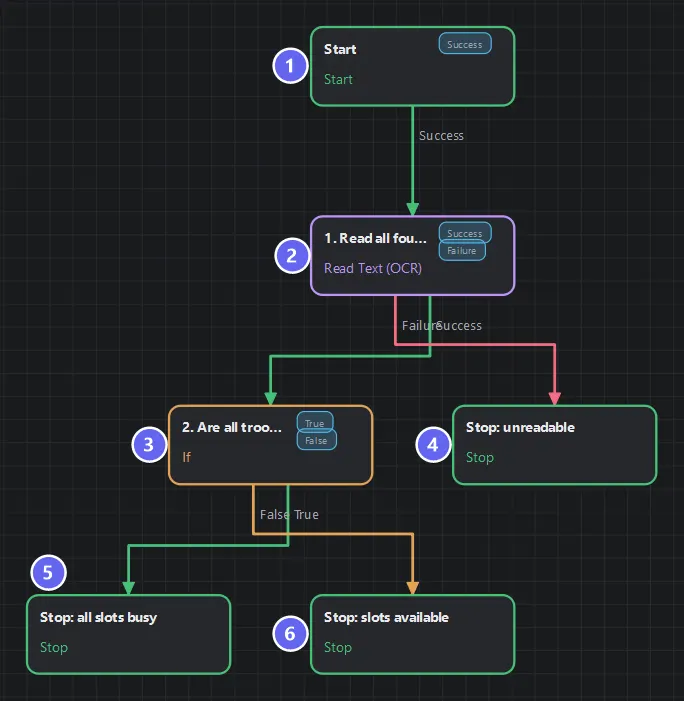
Badges number the nodes in reading order, matching the Build it steps. Four readouts, four content types, one flow — the value type is a per-node setting, not a different node.
Build it
- New flow; declare six nullable variables:
gold(number?),energy(number?),troops_current,troops_max,cycle_hours,cycle_minutes(all number?). - Add a Read Text named
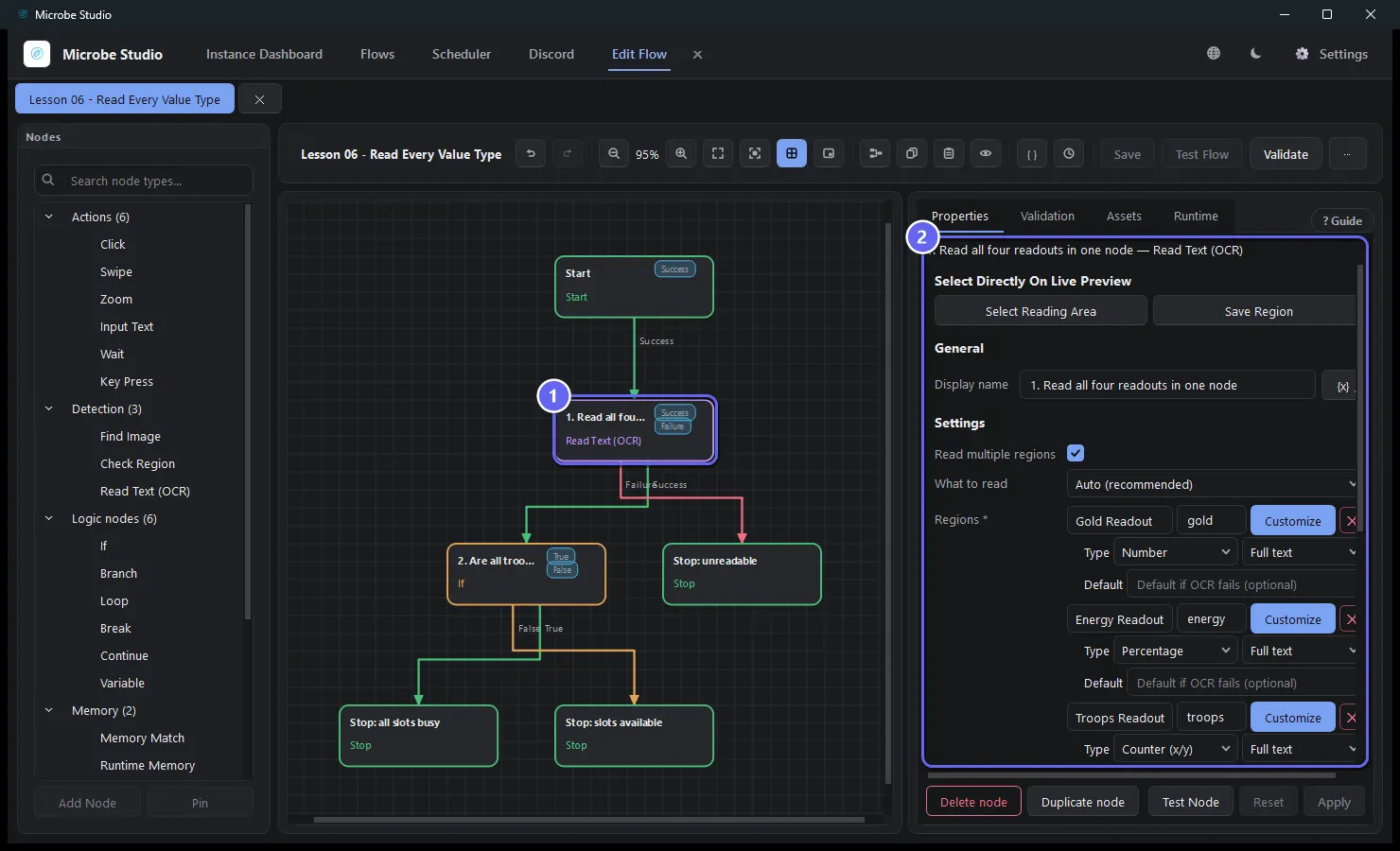
1. Read all four readouts in one nodeand switch on Read multiple regions. Add four regions:
| Region (drawn on Live Preview) | What to read | Variable(s) produced |
|---|---|---|
| Gold readout | Number | gold |
| Energy readout | Percentage | energy |
| Troops readout | Counter (x/y) | troops_current, troops_max |
| Next Cycle readout | Time (mm:ss) | cycle_hours, cycle_minutes |
Here is the node selected in the editor — the Properties panel shows the region list with each type:
- Add an If, Expression mode:
{{troops_current}} >= {{troops_max}}. - Three Stops:
all slots busy(success) /slots available(success) /unreadable(failure). - Wire as diagrammed. Save, Auto Layout.
Why it works this way
One frame, many crops. The node captures a single screenshot and OCRs each rectangle from it. Cheaper than four nodes — and consistent: all four values come from the same instant, so a counter can never be newer than the timer next to it.
Structured types produce flat variables. Counter yields troops_current and troops_max, not a nested object — because {{name}} references resolve flat names everywhere (an If expression, a Click coordinate, a log line). The naming rule is simply <base>_<part>.
The comparison is two variables, not a variable and a constant — {{troops_current}} >= {{troops_max}} stays correct if the app ever shows 3/8 instead of 3/5. Prefer relationships over magic numbers when the screen offers both sides.
Run it
- Plain dashboard (
3/5): →success · A troop slot is free. dashboard.html?troops=5/5: →success · All troop slots in use.
Run Test Node on the read first and look at the output: six variables, each correctly typed — energy is 85 (a number, % already stripped), cycle_minutes is 20.
Best practices
- One multi-region node per screen, not one node per value.
- Name by meaning (
troops_current), never by position (value3). - Per-region types: each rectangle gets exactly the type of its content.
- Compare relationships (
current >= max) instead of constants where possible. - Set a per-region Default only when a fallback is genuinely safe — otherwise let emptiness surface.
Common mistakes
| Mistake | What happens | Fix |
|---|---|---|
| Four separate Read Text nodes | 4× slower, values from different instants | One multi-region node |
Referencing {{troops}} | Doesn't exist — the counter made troops_current/troops_max | Use the flat names |
Counter type on the 85% readout | No x/y shape to parse → empty | Percentage type |
| Regions overlapping two readouts | Garbled reads | One tight rectangle per value |
Troubleshooting
One region reads, another comes back empty. Each region parses independently. Test Node shows the per-region raw OCR — the empty one's rectangle is off or its type mismatches its content.
energy compares wrong.
Check it's the Percentage type: it yields the number 85. Auto would yield the string "85%".
All four empty at once. That's a capture problem, not four coincidences: wrong screen in front, or OCR gate off.
Summary
- Multi-region OCR: one screenshot, many typed values, guaranteed consistency.
- Counter and Time produce flat
_current/_max,_hours/_minutesvariables. - The screen often provides both sides of a comparison — use them.
Next
You can read anything the screen shows. Lesson 07 · Count With Variables makes the flow produce values of its own — counters, a loop, and your first per-run Flow Input.
Also see: Read Text (OCR) · Variables and Memory