Lesson 03 · Find and Click
The most-used two-node idiom in the product: find it, then tap exactly where it was found.
The problem
In Lessons 01–02 you drew click regions by hand. That works — until the button moves. A different resolution, a layout change, a scrolled list, and your rectangle taps empty space.
The fix is to stop telling the flow where the button is and start telling it what the button looks like. Detection finds it; the Click borrows the match position.
What you will learn
- Wiring a Click's coordinate source to a Find Image result.
- What data actually flows between the two nodes.
- Handling "it isn't there" as a first-class outcome.
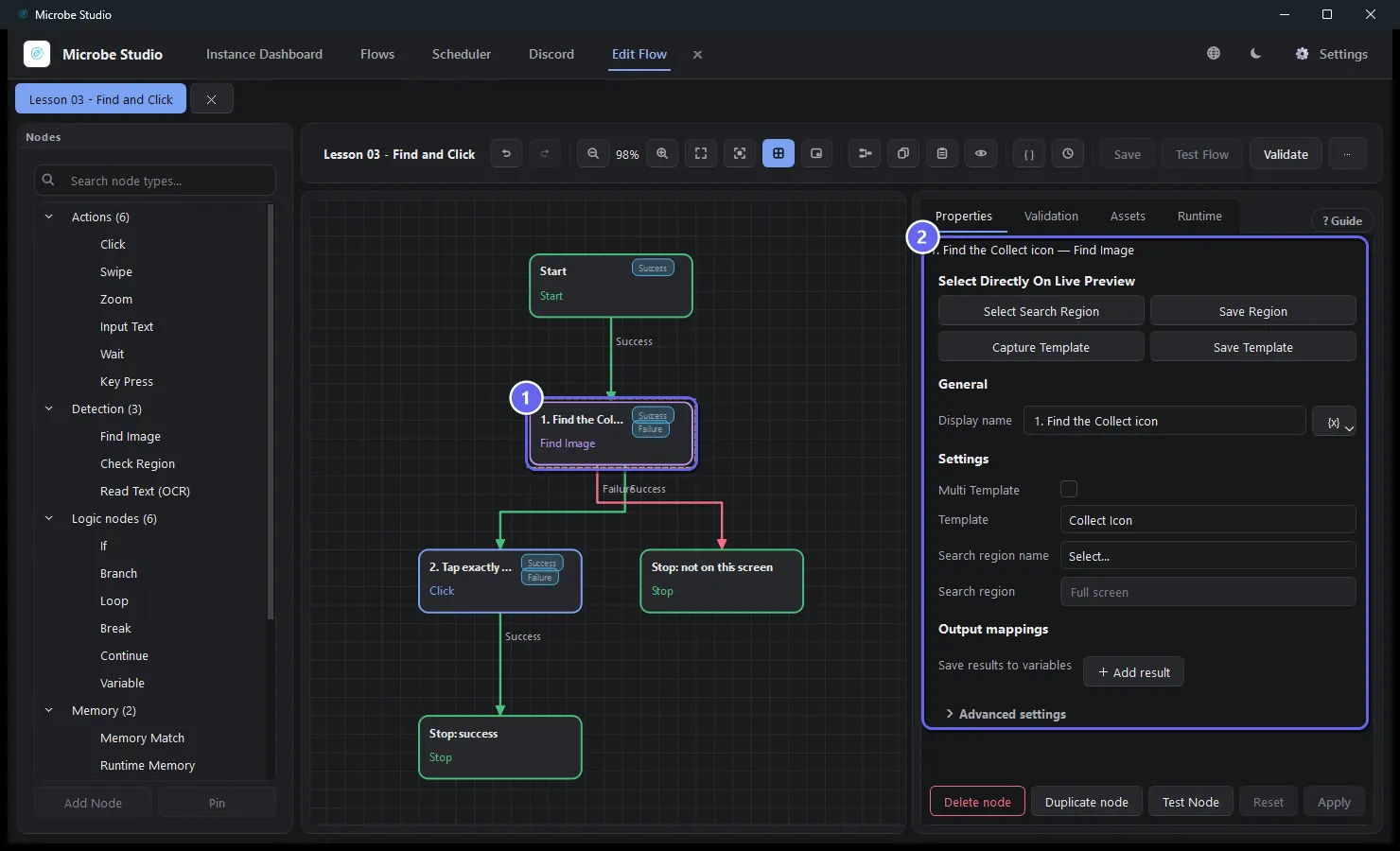
- Reading a node's configuration in the Properties panel.
Before you start
- Lesson 02 completed.
- Practice App at
dashboard.html.
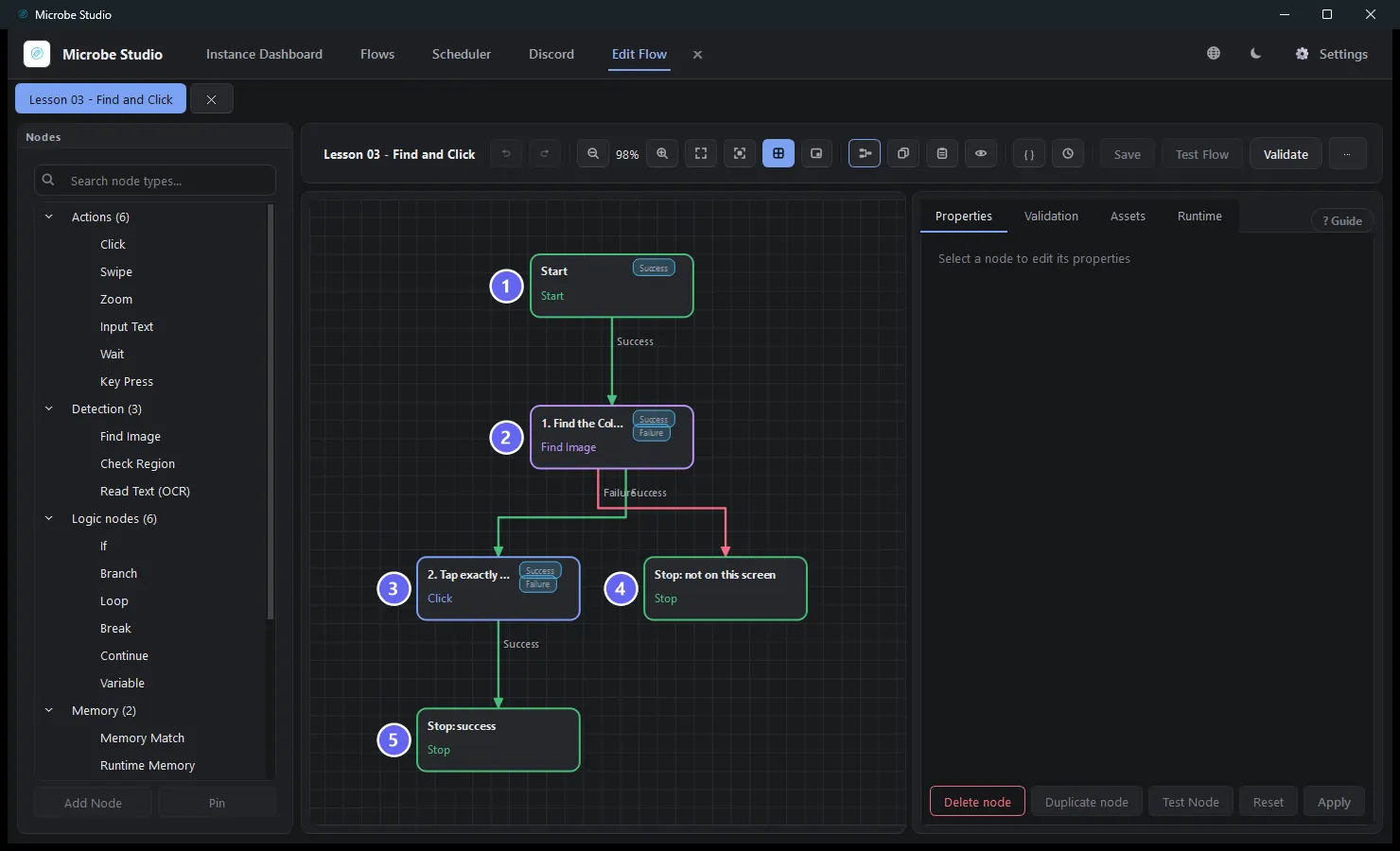
The flow
Build it
- New flow. Add a Find Image named
1. Find the Collect icon. Capture the green check icon from the Collect button as its template. Threshold0.88, timeout5000ms. - Add a Click named
2. Tap exactly where it matched. In its Properties, set Coordinate source to the Find Image node — not a manual region. - Add
Stop: success(messageCollected) andStop: not on this screen(failure). - Wire: Find Image Success → Click, Failure → the failing Stop; Click Success → the success Stop.
- Save, Auto Layout.
Here is the Find Image node selected, with its full configuration in the Properties panel — the template, threshold and search region are all visible at a glance:
Why each node — and what passes between them
| Node | Role | What it passes on |
|---|---|---|
| Find Image | Polls fresh screenshots until the template matches | Its recorded result: matched centre, rectangle, confidence |
| Click | Resolves its tap point from that recorded result | Control |
This is the first time one node consumes another node's output. The runtime records every node's result in the run context; when the Click executes, it looks up the Find Image's recorded match and taps its centre.
Two consequences:
- Order matters. The Find Image must have executed on this path before the Click. A Click whose source never ran (or never matched) exits Failure — there is nothing to tap.
- No coordinates live in the flow. Move the button, change resolution, scroll the panel — as long as the template matches, the tap follows it.
The Click reads the match directly — no variables needed. If you ever want the coordinates for arithmetic or logging, Find Image's Save results to variables binds centerX/centerY and friends to named variables. That is the machinery Lesson 05 builds on.
Run it
On the dashboard, expected: match within ~300 ms, tap, success · Collected — and the emulator navigates to the Targets page (that is what Collect does).
Then scroll the dashboard away or open verify.html and run again: no match for 5 seconds → failure · Collect icon not found. The flow handled absence instead of tapping blindly at nothing.
Best practices
- Prefer a Find Image source over drawn regions for anything that can move. Draw regions only for truly fixed chrome.
- Wire the Failure port, always. "Not there" is a normal outcome, and an unwired route ends the run with a generic error instead of your message.
- Tight templates. The icon, not the button-with-label — the icon survives text and layout changes.
- Start thresholds at 0.88 and use Test Node to see the real confidence before tuning.
- Keep timeouts honest. 5000 ms means "this icon can legitimately take up to 5 s to appear". If it is either there or not, 1500–2000 ms saves time on every negative run.
Common mistakes
| Mistake | What happens | Fix |
|---|---|---|
| Click's source node hasn't run on this path | Click exits Failure | Wire Find Image before the Click, on the same branch |
| Only Success wired | "Not found" kills the run with TRANSITION_NOT_FOUND | Wire Failure to a Stop |
| Template captured with background | Confidence drops when anything shifts | Recapture a tight crop |
| Adding retry to the Find Image to "look harder" | Retry never fires — not-found has status success | Raise the timeout instead |
Troubleshooting
Find Image never matches although the icon is on screen. Run Test Node and read the reported confidence. Far below 0.88 → the template has background or was captured at a different zoom; recapture.
It matches the wrong place. Add a search region over the button row — smaller search area, fewer false positives, faster too.
The tap lands slightly off the icon. It taps the match centre. If you want an offset target (a label under an icon), use the Click's Click Offset — see Click.
Summary
- Detection finds; action consumes the recorded match. No coordinates in the flow.
- A source node must execute (and match) on the same path before the node that reads it.
- Wire Failure. Absence is information, not an error.
Next
Sometimes an element is supposed to be there only sometimes — a daily popup, a one-time offer. Lesson 04 · Handle an Optional Popup builds the branch where both outcomes are correct.
Also see: Find Image · Click · Flow Anatomy