Lesson 05 · Read a Number
Until now the screen answered yes/no questions. Now it starts answering how much.
The problem
The dashboard shows Gold: 12480. Decide: is it above 10,000 or not — and route the flow accordingly.
That requires three new abilities: reading text off the screen, reading it as a number rather than as characters, and branching on a condition rather than on a detection.
What you will learn
- Your first Read Text (OCR) node, and why its What to read type matters more than any other setting.
- Storing a read into a variable.
- Your first If node, in Expression mode.
- Why an unreadable value should stay empty, never become a fake
0.
Before you start
- Lesson 04 completed.
- The flow's OCR feature gate on: flow settings → Features →
ocrEnabled. A Read Text node in a flow with OCR off fails immediately — it is the most common first-OCR stumble.
The flow
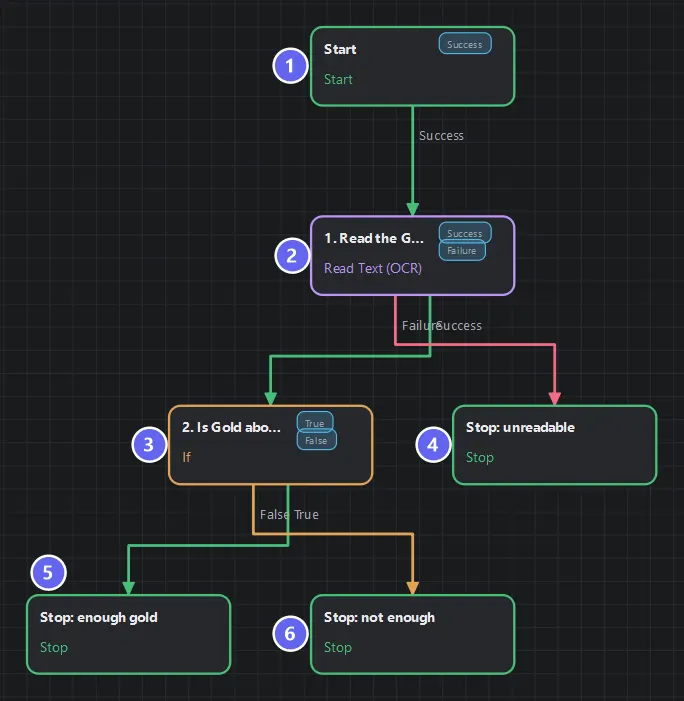
Badges number the nodes in reading order, matching the Build it steps. The OCR node has two exits and the If below it has two more, so a single reading produces three distinct endings — unreadable, enough, not enough.
Build it
- New flow. In the flow's Variables dialog, declare
goldas number? (nullable — more on the?below). - Add a Read Text (OCR) named
1. Read the Gold readout:- Region: drawn tightly around just the white Gold readout on Live Preview.
- What to read: Number — not Auto.
- Output variable:
gold. Timeout5000ms.
- Add an If named
2. Is Gold above 10000?, condition type Expression:{{gold}} > 10000. - Three Stops:
enough gold(success) /not enough(success) /unreadable(failure). - Wire: Read Success → If, Read Failure → unreadable; If True → enough, False → not enough.
- Save, Auto Layout.
Why each node — and the two rules that matter
| Node | Role | Passes on |
|---|---|---|
| Read Text | OCRs the region, parses it per its type | vars.gold as a number |
| If | Evaluates the expression against the context | Its route: True / False |
| Three Stops | One per genuinely different outcome | Final status + message |
Rule 1 — the type does the work. With What to read: Number, the engine tunes itself for digits and delivers 12480 as a number. With Auto you get the string "12480" — and {{gold}} > 10000 comparing a string quietly misbehaves. Choosing the right type replaces a pile of manual cleanup.
Rule 2 — unreadable stays empty. If OCR can't parse a number, gold stays empty; the product never invents a 0. A fabricated zero would flow silently into your comparison and take the wrong branch; an empty value fails visibly. That is also why the declaration is number? — the ? permits emptiness. Declare it plain number and an unparseable read rejects the run with a type error instead.
Why three Stops, and why unreadable is failure: "above threshold" and "below threshold" are both correct answers to your question — success. "I could not read the screen" is a different beast: the flow failed at its job. Downstream (queues, schedules, parent flows) will treat these statuses differently, so declaring them honestly matters beyond cosmetics.
Run it
- Plain dashboard: Gold is
12480→success · Gold above threshold. - Load
dashboard.html?gold=900and run: →success · Gold below threshold. - Navigate away from the Practice App and run: nothing to read →
failure · unreadable.
Three runs, three endings, all deliberate. Use Test Node on the Read Text first — it shows the raw OCR and the parsed value before you run anything.
Best practices
- Tight OCR regions. Surrounding UI is the top cause of misreads.
- Always the specific type, never Auto, when you know what the area contains.
- Declare OCR variables nullable (
number?,string?). - Wire Read Text's Failure — an OCR that can't read is a fact worth reporting, not hiding.
- Test Node before Test Flow. Verify the read in isolation, then the logic.
Common mistakes
| Mistake | What happens | Fix |
|---|---|---|
| Type left on Auto | > compares a string; wrong branch taken | Set Number |
Non-nullable number declaration | Unreadable run rejects with TYPE_MISMATCH | Declare number? |
| Region includes the "GOLD" label | OCR mixes letters into digits | Tighten to the white readout |
| Expecting Failure when the region is empty | An empty read is Success with an empty value | Branch on the value (If → Is Empty) |
| OCR gate off | Node fails instantly | Flow settings → Features → ocrEnabled |
Troubleshooting
gold is always empty.
Test Node shows what OCR saw. Usually the region is off by a few pixels or includes the label. Redraw it.
The If routes Fatal.
Its expression isn't a boolean — check for typos like {{gold}} alone (a number is not a condition) or a misspelled variable name.
Reads are right on your PC but wrong for a friend. Different emulator resolution. Regions are percentage-based, but glyph size still affects OCR — confirm both machines run 1280×720.
Summary
- Read Text turns pixels into typed values; the What to read type is the setting that matters.
- If evaluates expressions over variables; both its ports must be wired.
- Empty beats fabricated: unreadable values stay empty, and nullable declarations make that legal.
Next
One readout down, three to go. Lesson 06 · Read Every Value Type reads all four dashboard readouts — number, percentage, counter, and time — in a single node, with one screenshot.
Also see: Read Text (OCR) · If · Variables and Memory