Lesson 02 · Wait and Verify
Lesson 01's flow had a flaw: it assumed the tap worked. This lesson makes the flow prove it.
The problem
Tap Claim Daily on the Practice App dashboard and a reward popup opens — after a short animation. Your automation needs to know: did the popup actually open?
A Click reports Success the moment the tap is sent. It has no idea what happened on screen afterwards. Every reliable flow you will ever build closes that gap the same way: act → settle → verify.
What you will learn
- Why actions don't wait, and why that is by design.
- The act → settle → verify pattern.
- Your first detection node, and its two meaningful exits.
- Giving success and failure different endings.
Before you start
- Lesson 01 completed.
- Practice App open at
dashboard.html.
The flow
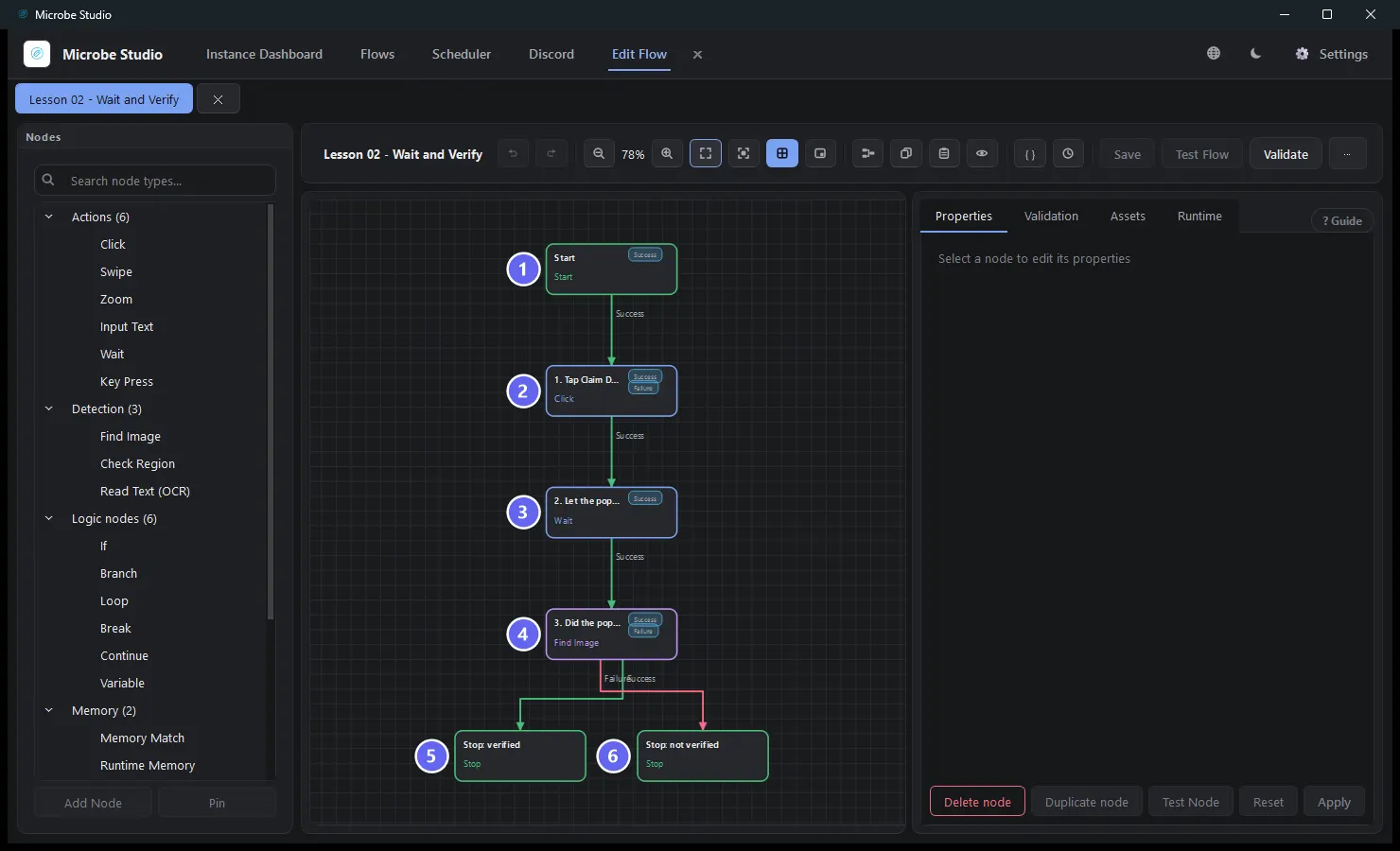
Build it
- Create a new flow. Add a Click named
1. Tap Claim Daily, region drawn around the Claim Daily button. - Add a Wait named
2. Let the popup animate. Duration800ms, and putpopup open animationin its Reason field — six months from now you will want to know why that number exists. - Add a Find Image named
3. Did the popup open?. On Live Preview, with the popup open (dashboard.html?popup=1), use Capture Template to grab the popup's star icon. Timeout3000ms. - Add two Stops:
Stop: verified(success, messagePopup opened) andStop: not verified(failure, messagePopup did not open). - Wire: Start → Click → Wait → Find Image; Find Image Success → verified, Failure → not verified.
- Save, Auto Layout.
Why each node
| Node | Role | What it passes on |
|---|---|---|
| Click | Performs the tap | Nothing the next node uses — just control |
| Wait | Absorbs the animation time | Control, after 800 ms |
| Find Image | The verification: polls fresh screenshots for the template | Its route — Success (found) or Failure (not found in time) |
| Two Stops | Turn the verdict into distinct, readable outcomes | The run's final status + message |
Why the Wait matters: detection reads a fresh screenshot. Without the settle, the Find Image can capture a frame from mid-animation — or before the popup exists at all — and report "not found" on a popup that was about to appear.
Why Find Image doubles as a wait: it re-captures and re-matches every poll interval (250 ms) until it matches or its 3000 ms timeout expires. It returns the moment the icon appears. So the 800 ms Wait plus the 3000 ms timeout is not "3.8 seconds of waiting" — the typical run verifies in about a second.
When the Find Image times out without a match, its status is still success — the search itself worked. Only its route is Failure. That distinction runs through the whole product: a not-found never trips retry and never counts toward failure limits. The Execution Model explains why.
Run it
Run on the plain dashboard. Expected: the popup opens, the Find Image matches within a second, and the run ends success / Popup opened.
Now try the negative case: kill the page (or navigate the emulator elsewhere) and run again. The tap hits nothing, the popup never opens, and after 3 seconds the run ends failure / Popup did not open — the flow told you the truth instead of pretending.
Best practices
- Verify every action that matters. Tap → settle → check is the backbone of reliable automation.
- Fill in Wait's Reason field. Undocumented delays are how flows rot.
- Give the two outcomes different endings with different messages. One shared Stop hides what actually happened.
- Capture tight templates. The star icon alone, not the whole popup — background pixels are what break matching later.
Common mistakes
| Mistake | What happens | Fix |
|---|---|---|
| No settle before verification | Detection reads a mid-animation frame | Keep the Wait |
| Verifying with another blind Wait | You know nothing new after it | Verify with detection |
| One Stop for both outcomes | The log can't tell success from failure | Two Stops, two messages |
| Template includes popup background | Matching breaks when anything shifts | Tight crop of the icon |
Troubleshooting
Verification fails even though the popup opened. Raise the Wait to 1200 ms — a slower machine animates longer. If it still fails, recapture the template; it probably includes background.
Verification passes instantly even with no popup. Your template is too generic and matches something else on screen. Recapture a tighter, more distinctive crop.
The flow is slow. It shouldn't be — Find Image returns on first match. If every run takes the full timeout, the template never matches and you are living on the Failure path; fix the template.
Summary
- Actions report "sent", not "worked". Act → settle → verify.
- A detection node is both a check and a smart wait — it returns as soon as its condition holds.
- Detection's route (found / not found) is separate from its status, and both outcomes deserve their own Stop.
Next
You verified that something appeared. Lesson 03 · Find and Click flips the relationship: find something first, then act on the exact spot where it was found — no coordinates in the flow at all.
Also see: Wait · Find Image · Retry and Failures